
iptv 4k for canada, uk, usa and worldwide
  • Pricing
  • Multi Connections
  • Reseller
  • Installation Tutorial
  • Blog
  • Contact
Reading: How to Install Smart IPTV on Firestick & Android TV (2025)
Share
Subscribe Now
Font ResizerAa
IPTV 4K: Best IPTV Subscription Provider in USA, CANADA, UK & WorldwideIPTV 4K: Best IPTV Subscription Provider in USA, CANADA, UK & Worldwide
  • Pricing
  • Multi Connections
  • Reseller
  • Installation Tutorial
  • Blog
  • Contact
IPTV Shark, ALL Right Saved
IPTV 4K: Best IPTV Subscription Provider in USA, CANADA, UK & Worldwide > IPTV > How to Install Smart IPTV on Firestick & Android TV (2025)
IPTV

How to Install Smart IPTV on Firestick & Android TV (2025)

Ashely By Ashely Last updated: January 26, 2026 8 Min Read
The image shows a smart TV displaying a variety of apps and streaming options, likely related to IPTV services. In the foreground, two remote controls are placed on a sleek surface: one appears to be a Firestick remote with a USB-C connector at the back, and the other is a standard TV remote. Above the remotes, there is a holographic interface displaying a hexagon, possibly indicating a selection or focus area in the IPTV interface. The overall aesthetic is modern and clean, suggesting a futuristic, tech-driven viewing experience ,How to Install Smart IPTV on Firestick & Android TV (2025)
SHARE

This instructional guide will show you how to install and use Smart IPTV (SIPTV) on Firestick, Fire TV, and Android TV/Google TV Box.
Contents
How to Install Smart IPTV on Firestick/Android TV/Google TVStep 1: Setup Your Device for InstallationDeveloper Options Not AvailableGet Best Secret Kodi Addons for Free Movies & TV ShowsInstall The Best Secret Addons with a Few Clicks!Step 2: Install Smart IPTVHow to Set Up Smart IPTVSIPTV Features & DescriptionFrequently Asked QuestionsWhat is Smart IPTV?Is SIPTV Legal?What devices can I install this App on?Is Smart IPTV Free?
This image is a promotional or instructional graphic that explains how to install Smart IPTV on Fire TV Stick. On the left side, the text reads: How To Install Smart IPTV On Firestick The words "Smart IPTV" and "firetvstick" are highlighted in bold and orange/white, making them stand out prominently. On the right side of the image, there is a hand holding a Fire TV remote control, aimed toward a large television screen in the background. The TV is displaying a high-definition cityscape at night, suggesting a premium, immersive viewing experience. The image gives a modern, tech-savvy feel and is likely designed for a tutorial or guide on setting up IPTV streaming services on Amazon Firestick.

Smart IPTV is an IPTV Player that works with tons of services and devices for a fabulous live-streaming experience. SIPTV is a paid service that currently costs around $6 US for a LIFETIME subscription.

In order to use Smart, you must have an IPTV Service with an M3U URL to input for streaming. If you have a preferred IPTV Service with M3U URL, you can then sign up for Smart IPTV on their official website.

NOTE: To register for Smart users must input their device MAC address. A MAC Address or Media Access Control address is a device’s identifying address and is similar to an IP Address which can expose your location.

For anonymity reasons, we suggest using an alternative IPTV Player such as TiviMate or IPTV Smarters.

TROYPOINT TIP: We always suggest a VPN for IPTV that will ensure complete anonymity when using Streaming Apps and APKs.

The guide below will show you how to install Smart IPTV (SIPTV) on a Fire TV Stick 4K Max. However, these instructions will also work for any variation of Fire TV including Firestick 4k and Fire TV Cube.

Legal Disclaimer: TROYPOINT does not develop, operate, host, distribute, or administer any streaming application, add-on, website, or service. Furthermore, we cannot determine the legality of any streaming platform reviewed on this website. TROYPOINT specializes in educational tech reviews, tutorials, and news which is protected by the First Amendment of the United States Constitution. The end-user is solely responsible for media accessed and TROYPOINT assumes that all visitors are abiding by copyright laws set forth within their jurisdiction. Users should only stream works not protected by copyright when using unverified streaming solutions.

If you are using an Android TV/Google TV Box such as NVIDIA SHIELD, MECOOL, or other, you can also follow these instructions for quick installation.

How to Install Smart IPTV on Firestick/Android TV/Google TV

Step 1: Setup Your Device for Installation

1. Locate the Search bar and select it.
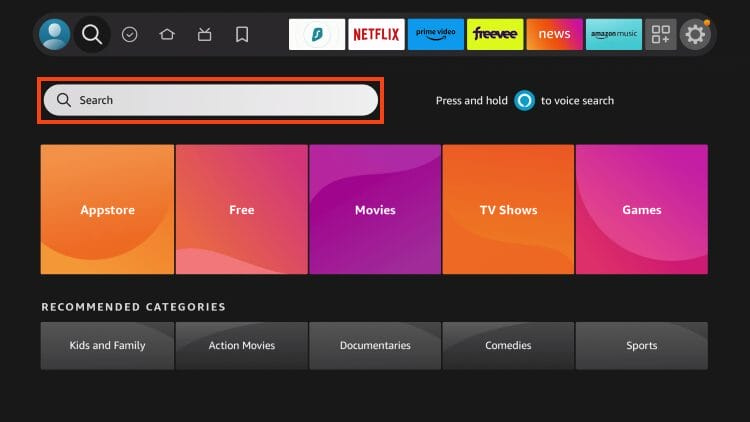
This image shows the home screen of an Amazon Fire TV Stick interface, focusing on the search feature. The search bar is highlighted with an orange border near the top of the screen, indicating where users can type or use voice input to look for apps, movies, TV shows, or games. Above the search bar are shortcut icons and popular streaming app tabs like Netflix, Prime Video, Freevee, News, and Amazon Music.

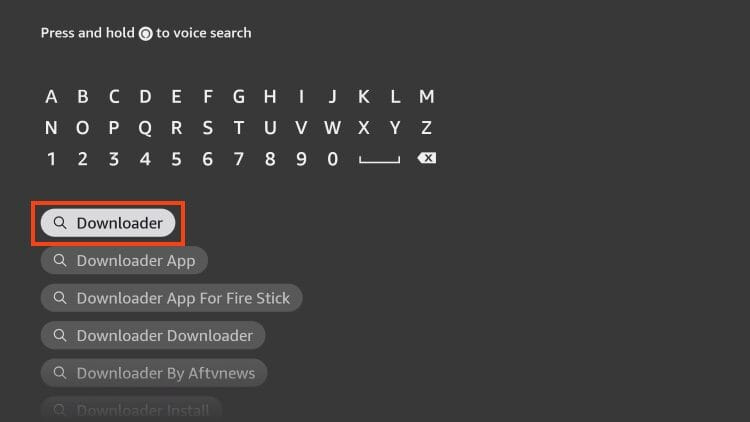
2. Type Downloader.

This image shows the search screen on an Amazon Fire TV Stick interface. The user is in the process of typing “Downloader” using the on-screen keyboard.

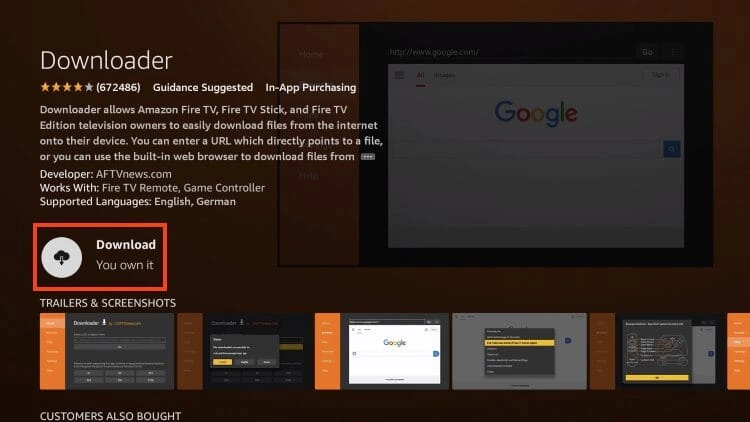
3. Select the Downloader by AFTVNews app.
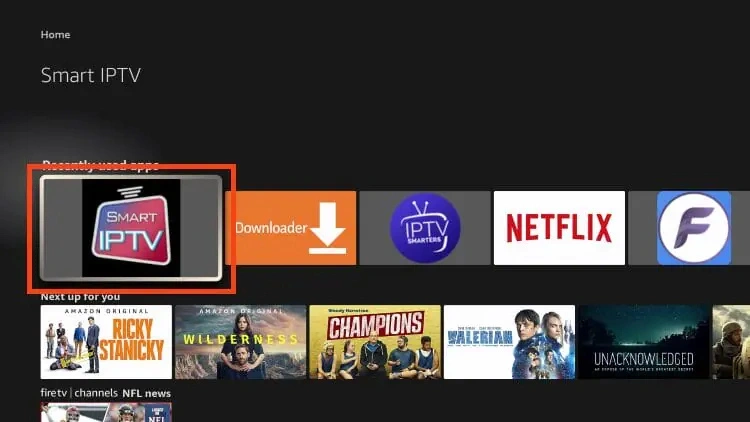
This image shows the FireStick home screen with the Smart IPTV app highlighted under the "Downloaded apps" section. Here are the key elements visible: The Smart IPTV icon is prominently highlighted on the left, showing that it has already been installed and is ready to launch. Other apps installed on the device are visible in a horizontal row, including: Downloader (used to sideload Smart IPTV) IPTV Smarters Netflix Filelinked or FileSynced-type app (logo on the far right) Below the apps row, there’s a “Next up for you” section suggesting Amazon Prime content like Ricky Stanicky, Wilderness, and Champions.

4. Click Download or Get.

This image shows the Downloader app page on an Amazon FireStick or Fire TV device. Key details in the screenshot: App Name: Downloader Developer: AFTVnews.com User Rating: ★★★★☆ (672,486 reviews) Guidance: Guidance Suggested, includes In-App Purchasing Description: Downloader allows users to download files from the internet directly to their Fire TV/FireStick using a URL or built-in browser. Supported Languages: English, German Works With: Fire TV Remote, Game Controller Action Button: “Download” button is highlighted with the label “You own it”, indicating that the app is already associated with the user's Amazon account and ready for download or reinstallation.

5. Wait for installation to complete.
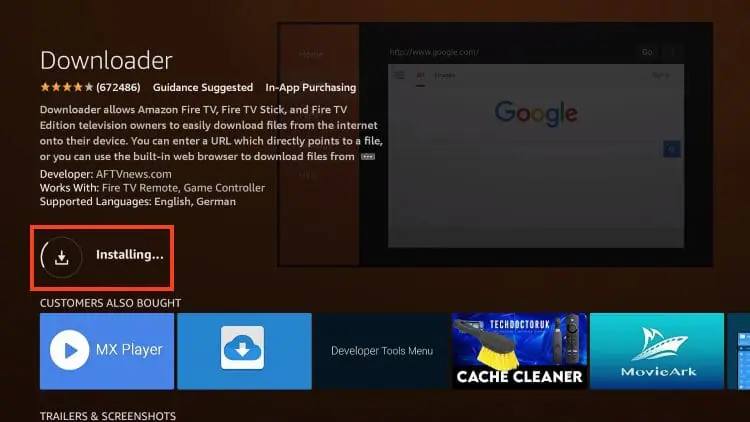
This image shows the Downloader app installation complete screen on an Amazon FireStick or Fire TV device. Key highlights: The Downloader app has been successfully installed, as indicated by the notification in the bottom-right corner: Text: 🔽 Downloader – Ready to launch! 🟢 Launch now The main "Open" button has replaced the download button on the left side, allowing the user to start the app immediately. The page still displays the app details: Developer: AFTVnews.com Works With: Fire TV Remote, Game Controller Supported Languages: English, German Bottom Row: Recommended apps like MX Player and Developer Tools Menu are shown under "Customers Also Bought". This screen appears right after downloading and installing the Downloader app, which is essential for sideloading IPTV players like Smart IPTV, TiviMate, or IPTV Smarters Pro.

🛑 DON’T SLEEP ON THIS DISCOUNT

Your online activity is recorded by your government, Internet Service Provider, app developers and all websites through your IP address

Your Current IP Address is 105.158.98.91
Stream & download anonymously by masking your IP Address with Surfshark VPN

TODAY’S DEAL
SAVE 86% ON SURFSHARK VPN + 3 EXTRA MONTHS
*Includes 30-day money back guarantee
*Use your account on unlimited devices & share with family members

CLAIM TODAY’S DISCOUNT

6. You will then see the Downloader Ready to launch! message.
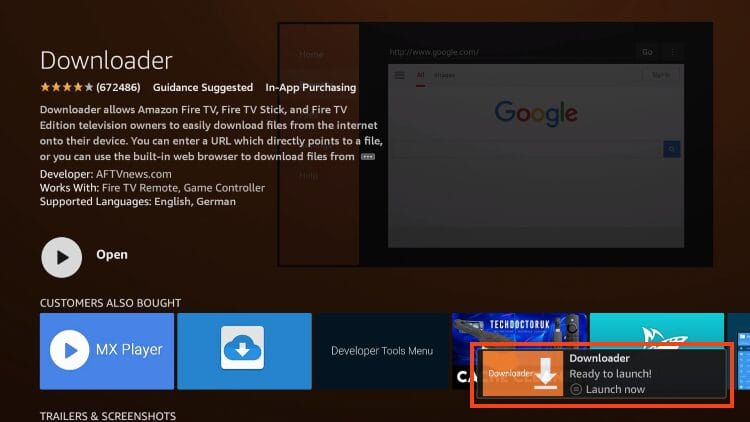
This image shows the Downloader app installation complete screen on an Amazon FireStick or Fire TV device. Key highlights: The Downloader app has been successfully installed, as indicated by the notification in the bottom-right corner: Text: 🔽 Downloader – Ready to launch! 🟢 Launch now The main "Open" button has replaced the download button on the left side, allowing the user to start the app immediately. The page still displays the app details: Developer: AFTVnews.com Works With: Fire TV Remote, Game Controller Supported Languages: English, German Bottom Row: Recommended apps like MX Player and Developer Tools Menu are shown under "Customers Also Bought". This screen appears right after downloading and installing the Downloader app, which is essential for sideloading IPTV players like Smart IPTV, TiviMate, or IPTV Smarters Pro.

7. Return to the home screen to hover over Settings and click My Fire TV.
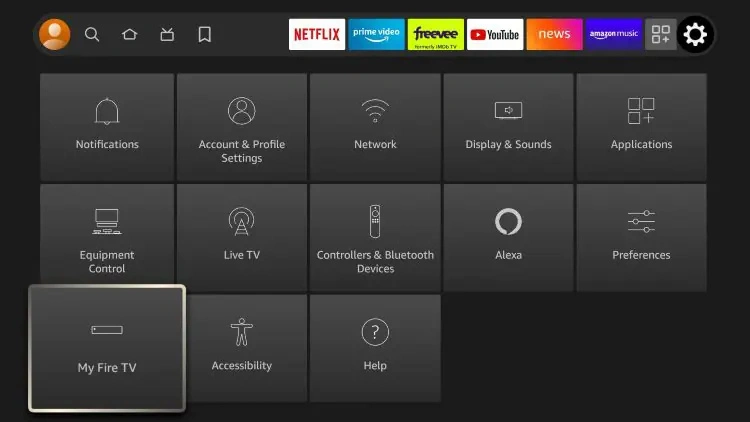
This image displays the Settings menu on an Amazon FireStick or Fire TV device interface. Key Elements: The screen shows various settings tiles, including: Notifications Account & Profile Settings Network Display & Sounds Applications Equipment Control Live TV Controllers & Bluetooth Devices Alexa Preferences Accessibility Help The tile "My Fire TV" is highlighted with a selection box, indicating the user is about to access it. Purpose of This Step: This step is usually part of enabling developer options or installing third-party apps (such as IPTV players) via sideloading. Once you enter "My Fire TV", the user will typically: Select Developer Options Enable Apps from Unknown Sources Turn on ADB Debugging

8. Choose Developer Options.

IMPORTANT: Please see the notes below if you don’t see Developer Options on your screen.
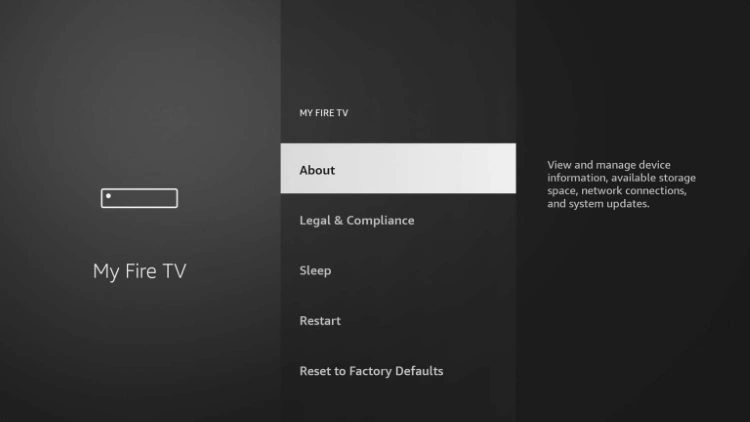
This image shows the "My Fire TV" settings menu on an Amazon FireStick or Fire TV device. Key Elements: The "My Fire TV" menu is open. The "About" option is highlighted, which allows users to view device details like: System information Storage status Network details System updates Purpose of This Step: This screen is typically used during the preparation to enable Developer Options, especially if the "Developer Options" menu is not visible by default. To reveal Developer Options (if missing), users often need to: Go to Settings > My Fire TV > About Select the device name (e.g., "Fire TV Stick") and click it 7 times to enable Developer Options

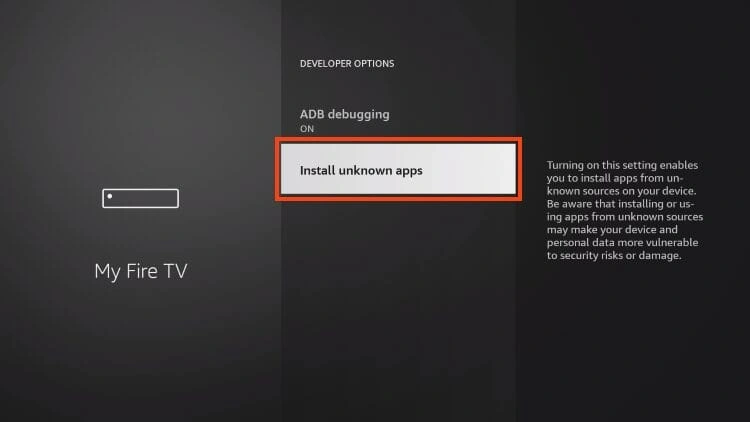
9. Click Install unknown apps.

Title: Install Unknown Apps The user has selected the Downloader app and toggled it ON. This allows the Downloader app to install APK files (apps) from sources outside the Appstore.

10. Find the Downloader app and choose it.
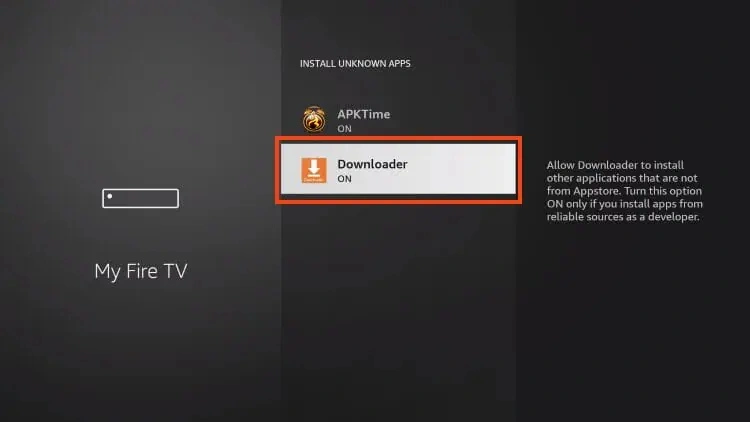
Title: Developer Options The user has navigated to the "Install unknown apps" setting. This option allows the installation of third-party apps not available in the Amazon Appstore. It includes a warning that enabling this may expose your device and personal data to risk.

11. This will turn Unknown Sources to On for the Downloader app and allow you to install apps of your choice including SIPTV.

Try Surfshark VPN Risk Free Now!

Title: Developer Options The user has navigated to the "Install unknown apps" setting. This option allows the installation of third-party apps not available in the Amazon Appstore. It includes a warning that enabling this may expose your device and personal data to risk.

Developer Options Not Available

If you are unable to locate developer options within settings, follow the instructions below to enable this to use the Downloader App.

Get Best Secret Kodi Addons for Free Movies & TV Shows

Install The Best Secret Addons with a Few Clicks!

Instructions for supercharging Kodi will be immediately delivered to your inbox.GET FREE SUPERCHARGE KODI GUIDE

We won’t send you spam. Unsubscribe at any time.

1. Hover over the Settings icon and click My Fire TV.

This image displays the Settings menu on an Amazon FireStick or Fire TV device interface. Key Elements: The screen shows various settings tiles, including: Notifications Account & Profile Settings Network Display & Sounds Applications Equipment Control Live TV Controllers & Bluetooth Devices Alexa Preferences Accessibility Help The tile "My Fire TV" is highlighted with a selection box, indicating the user is about to access it. Purpose of This Step: This step is usually part of enabling developer options or installing third-party apps (such as IPTV players) via sideloading. Once you enter "My Fire TV", the user will typically: Select Developer Options Enable Apps from Unknown Sources Turn on ADB Debugging

2. Click About.

Note: Notice Developer Options is missing.

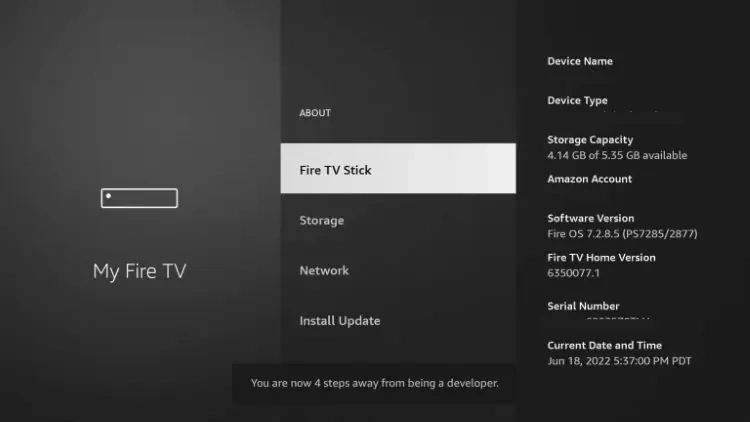
3. Hover over Fire TV Stick and click the OK button on your remote 7 times to become a developer.
Free StartMail Trial

This image shows the "My Fire TV" settings menu on an Amazon FireStick or Fire TV device. Key Elements: The "My Fire TV" menu is open. The "About" option is highlighted, which allows users to view device details like: System information Storage status Network details System updates Purpose of This Step: This screen is typically used during the preparation to enable Developer Options, especially if the "Developer Options" menu is not visible by default. To reveal Developer Options (if missing), users often need to: Go to Settings > My Fire TV > About Select the device name (e.g., "Fire TV Stick") and click it 7 times to enable Developer Options This is a crucial setup for sideloading apps like Smart IPTV or TiviMate IPTV Player using tools such as Downloader. Vous avez dit :

4. Click the back button on your remote and you will notice Developer Options is now showing within My Fire TV.
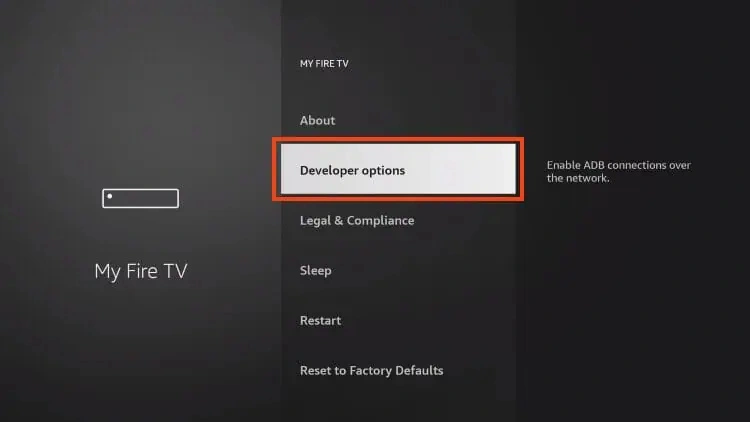
This image shows the "My Fire TV" settings menu on an Amazon FireStick or Fire TV device. Key Elements: The "My Fire TV" menu is open. The "About" option is highlighted, which allows users to view device details like: System information Storage status Network details System updates Purpose of This Step: This screen is typically used during the preparation to enable Developer Options, especially if the "Developer Options" menu is not visible by default. To reveal Developer Options (if missing), users often need to: Go to Settings > My Fire TV > About Select the device name (e.g., "Fire TV Stick") and click it 7 times to enable Developer Options This is a crucial setup for sideloading apps like Smart IPTV or TiviMate IPTV Player using tools such as Downloader. Vous avez dit :

Step 2: Install Smart IPTV

1. Open the Downloader App.
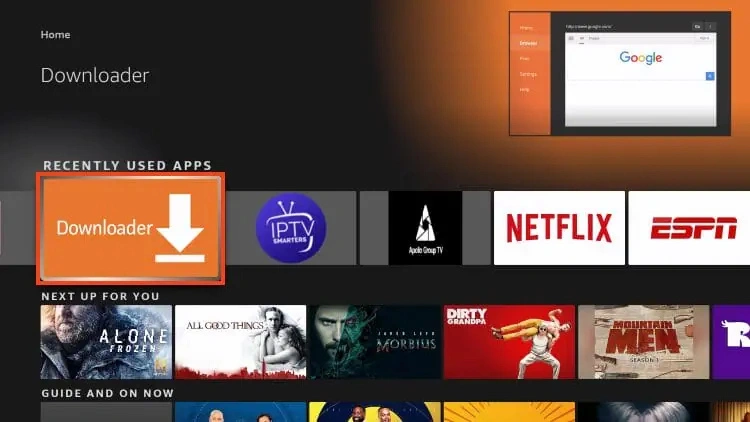
This image shows the FireStick home screen with the Smart IPTV app highlighted under the "Downloaded apps" section.

2. Hover over the URL bar and click the select button on your remote to open the Keyboard.
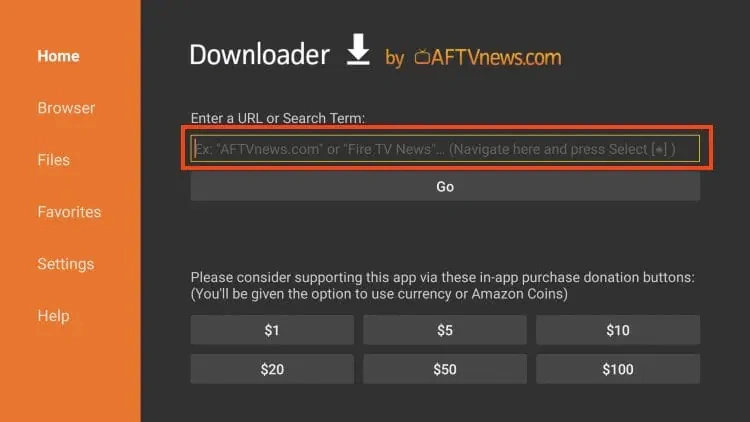
This image shows the Downloader app interface on an Amazon Fire TV or Firestick device. Description: The screen is part of the Downloader app, developed by AFTVnews.com. At the center, there's a highlighted field labeled "Enter a URL or Search Term", where users can input a direct download link (usually an APK file URL) to install third-party apps. Below the field is a “Go” button, which initiates the download and installation process. The sidebar on the left contains navigation options: Home, Browser, Files, Favorites, Settings, and Help. Donation buttons ($1–$100) are available for users who want to support the developer. This step typically comes after enabling installations from unknown sources and is where the IPTV app's download URL is entered.

3. Type the Downloader Code for Smart IPTV which is 26604 and click OK.
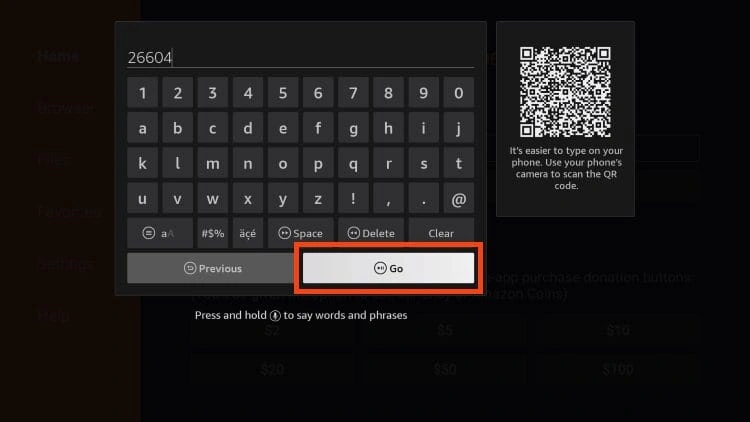
This image shows a screen from the Downloader app on an Amazon Firestick or Fire TV device, where a user is entering a short URL code to sideload an app. Description: A virtual keyboard is displayed, and the user has typed in the code "26604" into the input field. This short code corresponds to a URL that will later redirect to the Smart IPTV APK file. The “Go” button at the bottom of the keyboard is highlighted, indicating the next step is to press it to begin the redirection process. On the right, there’s a QR code with a message suggesting it’s easier to type on your phone by scanning the QR code. The background interface is part of the Downloader app, commonly used for sideloading apps on Firestick. This is an essential step in installing Smart IPTV manually on Firestick using the Downloader tool.

4. You will now see a redirect page.
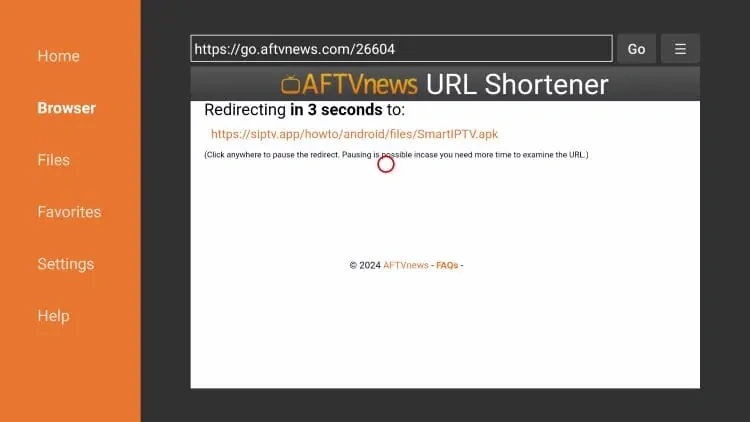
This image shows a redirection screen within the Downloader app on a Fire TV or Firestick device. Description: At the top, there’s a URL entered: https://go.aftvnews.com/26604, which is a shortened link created using the AFTVnews URL Shortener service. The screen displays a message saying "Redirecting in 3 seconds to:" followed by the actual destination URL: https://siptv.app/howto/android/files/SmartIPTV.apk This indicates the app is about to redirect the user to the Smart IPTV APK download. The orange sidebar on the left shows navigation options: Home, Browser, Files, Favorites, Settings, and Help. There's also a note that says users can click to pause the redirect if they need more time.

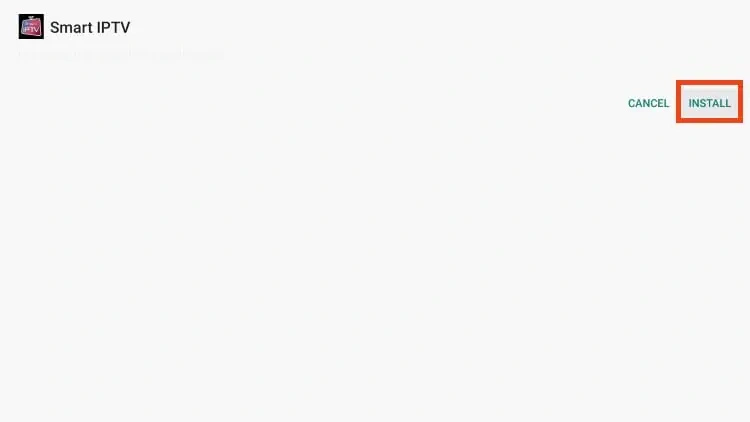
5. Click Install.

This image shows the final step of installing the Smart IPTV app on an Amazon FireStick or Android TV using the Downloader app. Description: At the top-left, the Smart IPTV logo and name are displayed, confirming the app has been successfully installed. On the top-right corner, there are two options: "DONE" – allows the user to exit the installer and return to the Downloader or previous screen. "OPEN" – directly launches the Smart IPTV app. A pop-up notification appears at the bottom right corner saying: "Smart IPTV Ready to launch! Launch now", signaling that the app is now installed and ready for use.

6. You will then see Smart IPTV installation message. Click Done.
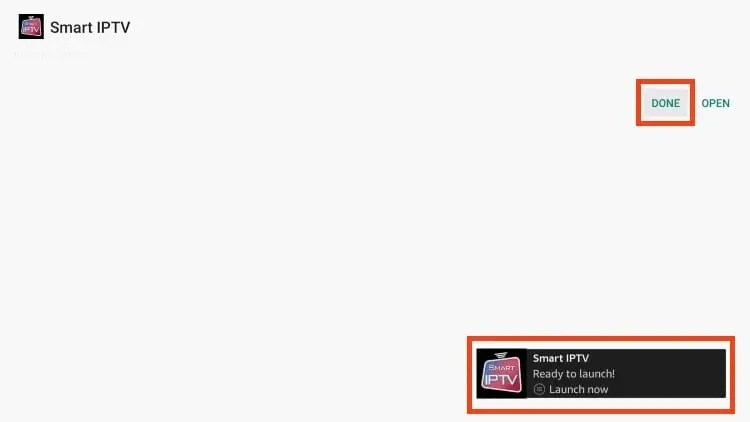
This image shows the final step of installing the Smart IPTV app on an Amazon FireStick or Android TV using the Downloader app. Description: At the top-left, the Smart IPTV logo and name are displayed, confirming the app has been successfully installed. On the top-right corner, there are two options: "DONE" – allows the user to exit the installer and return to the Downloader or previous screen. "OPEN" – directly launches the Smart IPTV app. A pop-up notification appears at the bottom right corner saying: "Smart IPTV Ready to launch! Launch now", signaling that the app is now installed and ready for use.

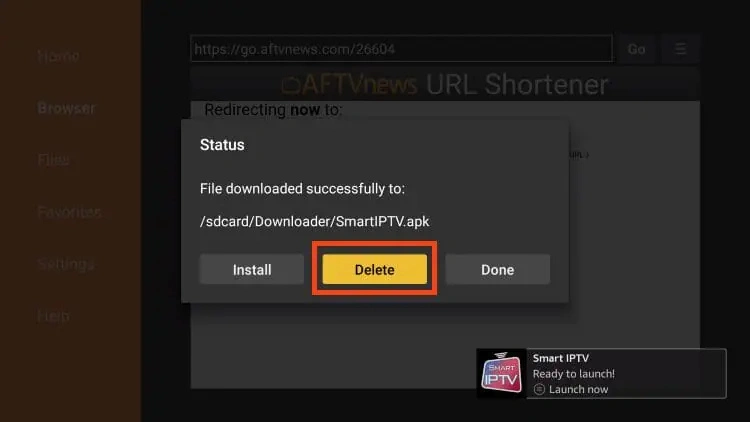
7. When prompted, click Delete.

This image shows the confirmation screen for deleting the Smart IPTV installation file (APK) after successful installation on a FireStick device using the Downloader app. Description: A dark confirmation dialog box is displayed in the center of the screen. The message reads: "Do you really want to delete /sdcard/Downloader/SmartIPTV.apk?" Below the message, two options are presented: "Delete" (highlighted in yellow) – confirms the removal of the APK file to free up space. "Cancel" – aborts the deletion and keeps the APK file on the device. In the bottom-right corner, there's a notification saying: "Smart IPTV – Ready to launch! Launch now", indicating the app is already installed and ready to use.

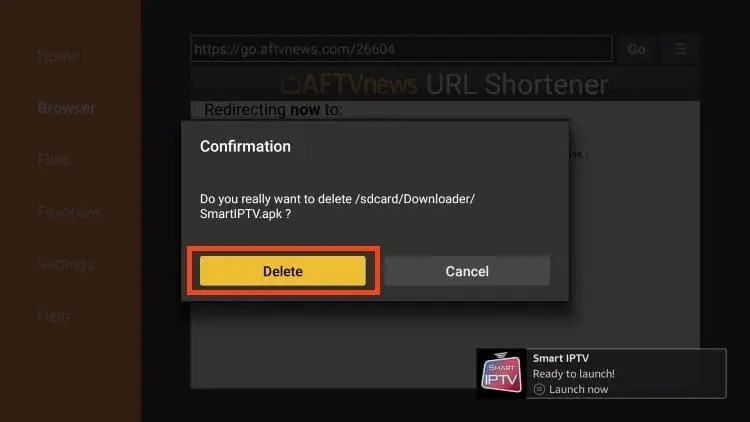
8. Select Delete again.

This image shows the confirmation screen for deleting the Smart IPTV installation file (APK) after successful installation on a FireStick device using the Downloader app. Description: A dark confirmation dialog box is displayed in the center of the screen. The message reads: "Do you really want to delete /sdcard/Downloader/SmartIPTV.apk?" Below the message, two options are presented: "Delete" (highlighted in yellow) – confirms the removal of the APK file to free up space. "Cancel" – aborts the deletion and keeps the APK file on the device. In the bottom-right corner, there's a notification saying: "Smart IPTV – Ready to launch! Launch now", indicating the app is already installed and ready to use.

Installation of Smart IPTV is now complete.

Continue reading to learn how to set up Smart on your preferred device.

How to Set Up Smart IPTV

After installing Smart IPTV, you can launch the app to continue the setup process.

1. Launch Smart IPTV.

This image shows the FireStick home screen with the Smart IPTV app highlighted under the "Downloaded apps" section. Here are the key elements visible: The Smart IPTV icon is prominently highlighted on the left, showing that it has already been installed and is ready to launch. Other apps installed on the device are visible in a horizontal row, including: Downloader (used to sideload Smart IPTV) IPTV Smarters Netflix Filelinked or FileSynced-type app (logo on the far right) Below the apps row, there’s a “Next up for you” section suggesting Amazon Prime content like Ricky Stanicky, Wilderness, and Champions.

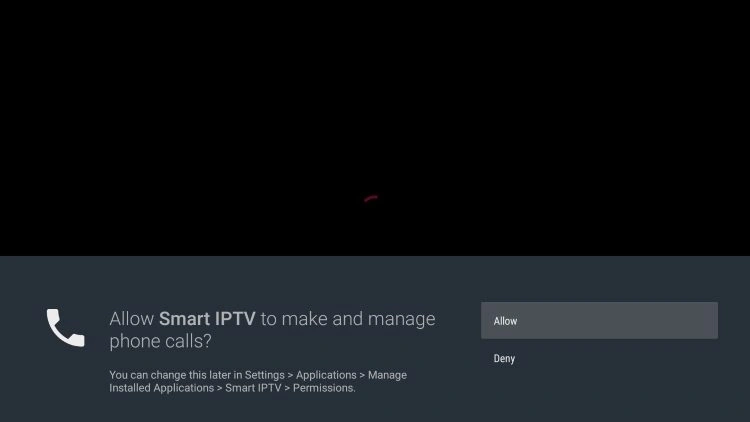
2. If you see the following message, click Allow.
This image shows the search screen on an Amazon Fire TV Stick interface. The user is in the process of typing “Downloader” using the on-screen keyboard.

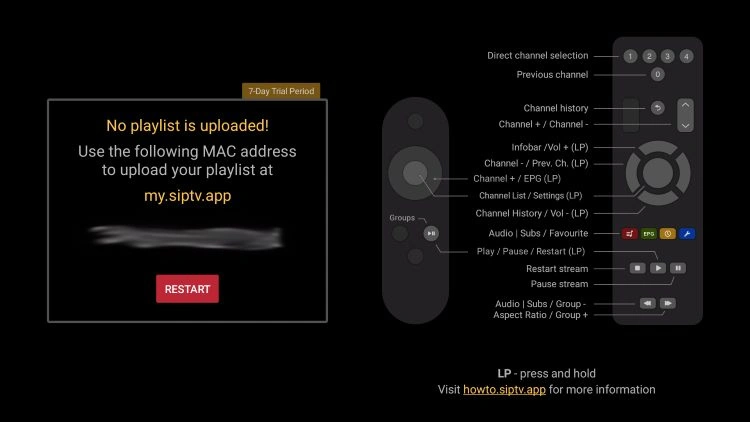
3. You will then encounter the following screen:
This image shows a screen from the Downloader app on an Amazon Firestick or Fire TV device, where a user is entering a short URL code to sideload an app. Description: A virtual keyboard is displayed, and the user has typed in the code "26604" into the input field. This short code corresponds to a URL that will later redirect to the Smart IPTV APK file. The “Go” button at the bottom of the keyboard is highlighted, indicating the next step is to press it to begin the redirection process. On the right, there’s a QR code with a message suggesting it’s easier to type on your phone by scanning the QR code. The background interface is part of the Downloader app, commonly used for sideloading apps on Firestick. This is an essential step in installing Smart IPTV manually on Firestick using the Downloader tool.

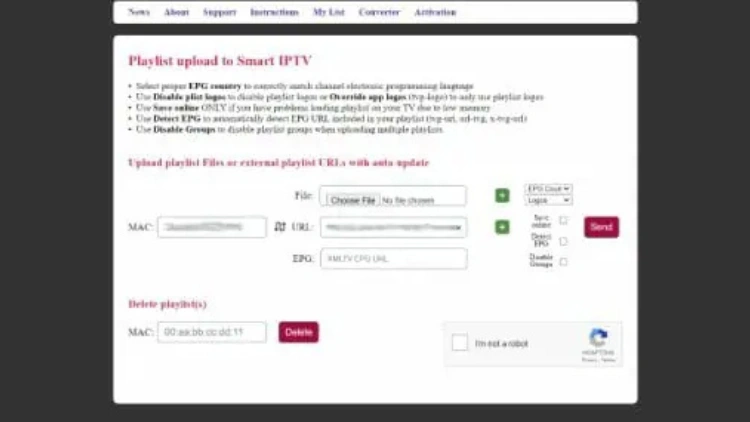
4. Visit my.siptv.app on any browser and enter your M3U URL or other playlist link and device MAC shown above. Click Send.
This image shows a redirection screen within the Downloader app on a Fire TV or Firestick device. Description: At the top, there’s a URL entered: https://go.aftvnews.com/26604, which is a shortened link created using the AFTVnews URL Shortener service. The screen displays a message saying "Redirecting in 3 seconds to:" followed by the actual destination URL: https://siptv.app/howto/android/files/SmartIPTV.apk This indicates the app is about to redirect the user to the Smart IPTV APK download. The orange sidebar on the left shows navigation options: Home, Browser, Files, Favorites, Settings, and Help. There's also a note that says users can click to pause the redirect if they need more time.

5. Return to the app and click Restart. Your playlist will upload for use.

Try Surfshark VPN Risk Free Now!

That’s it!

Set up of SIPTV is now complete. Enjoy!

SIPTV Features & Description

Smart IPTV is a well-known IPTV Player that works with nearly all IPTV Services that have an M3U URL or Playlist. While it is a paid service, users only need to provide one payment that will provide lifetime access to this application.

Aside from popular streaming devices such as Firestick and Android, users can also install Smart IPTV on LG Smart TV and more. SIPTV allows for the integration of numerous playlists to combine all your favorite services into one easy-to-access location.

Overall, Smart IPTV is a fabulous application that works with tons of various services and devices.

Frequently Asked Questions

What is Smart IPTV?

Smart is an IPTV Player that works with various IPTV Services for live streaming.

Is SIPTV Legal?

Yes. Smart IPTV is 100% legal, however, some services that work with Smart IPTV are unverified as legal services.

What devices can I install this App on?

Smart IPTV is available for installation on tons of streaming devices including Firestick, NVIDIA SHIELD, MECOOL, and more.

Is Smart IPTV Free?

No. Smart IPTV is a paid service that currently costs around $6 for a lifetime subscription.

Sign Up For Daily Newsletter

Be keep up! Get the latest breaking news delivered straight to your inbox.
[mc4wp_form]
By signing up, you agree to our Terms of Use and acknowledge the data practices in our Privacy Policy. You may unsubscribe at any time.
Share This Article
Facebook Twitter Copy Link Print
Previous Article The image features a futuristic workspace with a laptop and smartphone on a sleek black desk. The laptop screen displays a WordPress installation interface with various settings, and the smartphone shows a similar interface. Above the desk, there's a holographic screen showing the same WordPress installation window with interactive elements like buttons to install WordPress and fill out the required fields. The workspace is set in a modern, minimalist office with a light-colored chair and futuristic design elements in the background, suggesting a tech-savvy and high-tech environment,8 Best IPTV Player for Windows PC (2025) 8 Best IPTV Player for Windows PC (2025)
Next Article The image features a futuristic robot holding a remote control and standing in front of a smart TV displaying an IPTV interface. The screen shows details related to Perfect Player, a popular IPTV app. The robot, with a sleek design and illuminated elements on its body, is set in a modern living room environment, suggesting a high-tech setup for setting up IPTV in 2025. The text "HOW TO SET UP IPTV ON PERFECT PLAYER IN 2025" is prominently displayed, indicating the tutorial or guide being presented in the scene ,How to set up IPTV on Perfect Player in 2025 How to set up IPTV on Perfect Player in 2025
Leave a comment

Leave a Reply Cancel reply

Your email address will not be published. Required fields are marked *

- Advertisement -
Ad image

You Might Also Like

Best IPTV Canada Subscription Service Provid in 202ers (2025)

6 Min Read
The image features a futuristic robot holding a remote control and standing in front of a smart TV displaying an IPTV interface. The screen shows details related to Perfect Player, a popular IPTV app. The robot, with a sleek design and illuminated elements on its body, is set in a modern living room environment, suggesting a high-tech setup for setting up IPTV in 2025. The text "HOW TO SET UP IPTV ON PERFECT PLAYER IN 2025" is prominently displayed, indicating the tutorial or guide being presented in the scene ,How to set up IPTV on Perfect Player in 2025
IPTV

How to set up IPTV on Perfect Player in 2025

16 Min Read
The image showcases a modern workspace with plants and a clean, minimalistic design, featuring a central focus on Xtream IPTV setup for various devices in 2025. The Firestick and Android devices are highlighted, with corresponding setups displayed on a TV screen and computers in the background. The text "FIRESTICK", "ANDROID DEVICES", and "XTREAM" are prominently placed in the foreground, emphasizing the multi-device compatibility for Xtream IPTV. The text also hints at a step-by-step guide for easy installation. Some text on the devices appears as placeholder or gibberish, possibly meant for demonstration purposes ,Complete Xtream IPTV Setup & Download Guide for Firestick and More Devices Quick and Easy Installation in 2025
IPTV

Complete Xtream IPTV Setup & Download Guide for Firestick and More Devices: Quick and Easy Installation in 2025

17 Min Read
The image shows a futuristic IPTV interface displayed on a tablet screen, set against a city skyline. The interface includes multiple categories like News, Sports, Movies, Kid’s TV, and Therapy, with thumbnails of TV shows displayed below. A play button is prominently shown in the lower-right corner, indicating the media is ready for streaming. The design has a sleek, modern look, with the screen positioned at an angle on a futuristic stand. The overall aesthetic is clean, minimalistic, and visually appealing, conveying a cutting-edge streaming experience ,What is IPTV How It Functions, Best Devices and Services in 2025
IPTV

What is IPTV? How It Functions, Best Devices and Services in 2025

15 Min Read
IPTV 4K: Best IPTV Subscription Provider in USA, CANADA, UK & WorldwideIPTV 4K: Best IPTV Subscription Provider in USA, CANADA, UK & Worldwide
IPTV 4K Copyright 2024
  • 4K IPTV Uk
  • 4K IPTV Usa
  • IPTV Canada
Welcome Back!

Sign in to your account

Lost your password?