

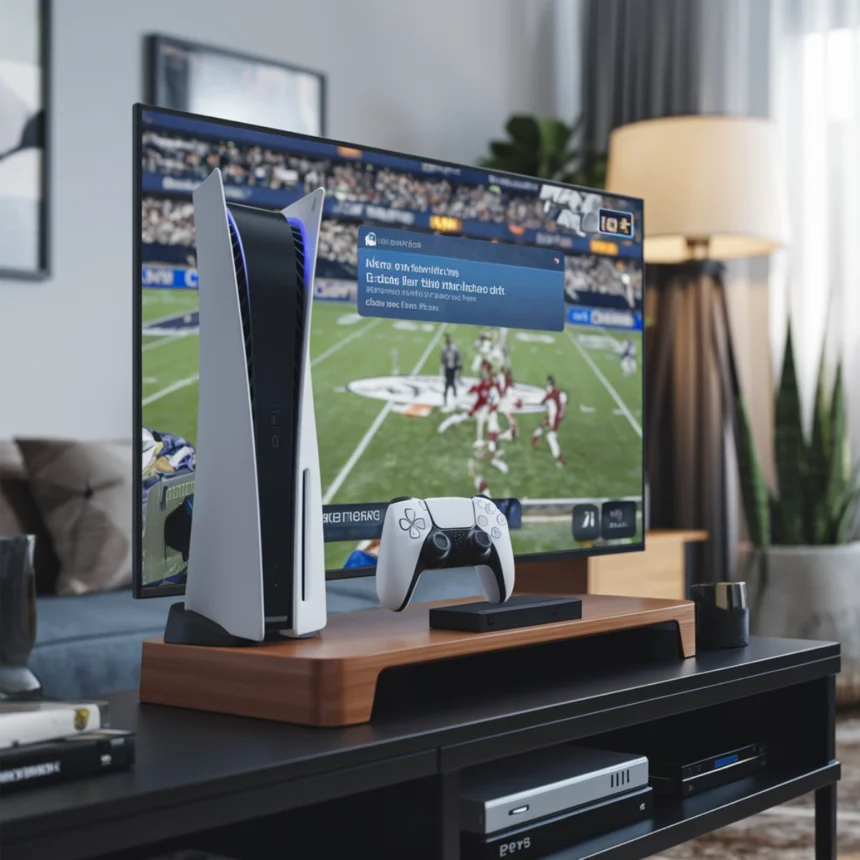
Imagine watching live TV on your
5 without cable or satellite TV. IPTV on PS5 makes this possible. Internet Protocol Television (IPTV) sends TV content over the internet, offering a great viewing experience.
By using compatible apps and setting up your PS5 right, you can watch live TV channels. This turns your PS5 into a powerful entertainment center. Even if you have a PS4 or PS3, setting up IPTV is easy.
Ready to discover IPTV on your PlayStation? It opens up a whole new world of entertainment.
Introduction to IPTV and PS5
IPTV, or Internet Protocol Television, is a new way to watch TV over the internet. It lets users stream live TV and on-demand content on their devices. The PS5, a new gaming console, now supports IPTV, making it even more exciting.
IPTV uses your internet connection, so you don’t need extra cables or hardware. This means you can watch a wide range of TV shows and movies on your PS5. You don’t need a separate box or subscription.
IPTV also has a video-on-demand (VOD) system. This lets you pick and watch content whenever you want. For PS5 owners, this is a big plus. They’re used to choosing what they watch and when.
Using IPTV on the PS5 gives you a top-notch viewing experience. The PS5’s fast hardware ensures smooth streaming. Its easy-to-use interface makes finding and watching content simple.
The rise of streaming services makes IPTV on the PS5 a big deal. It combines live TV, on-demand content, and gaming in one device. The PS5 is set to be the go-to entertainment center for many homes in Canada and beyond.
Setting Up IPTV on PS5 Using Plex
To enjoy IPTV on your PS5, setting up a Plex media server is a great choice. Plex lets you stream your favorite live TV channels on your gaming console. Follow these steps to set up your Plex media server for IPTV content on your PS5.
Step 1: Install Notepad++
- Download and install Notepad++ from here or get the latest version.
Step 2: Sign Up for Plex

- Go to Plex and create a free account.
Step 3: Download Plex Media Server
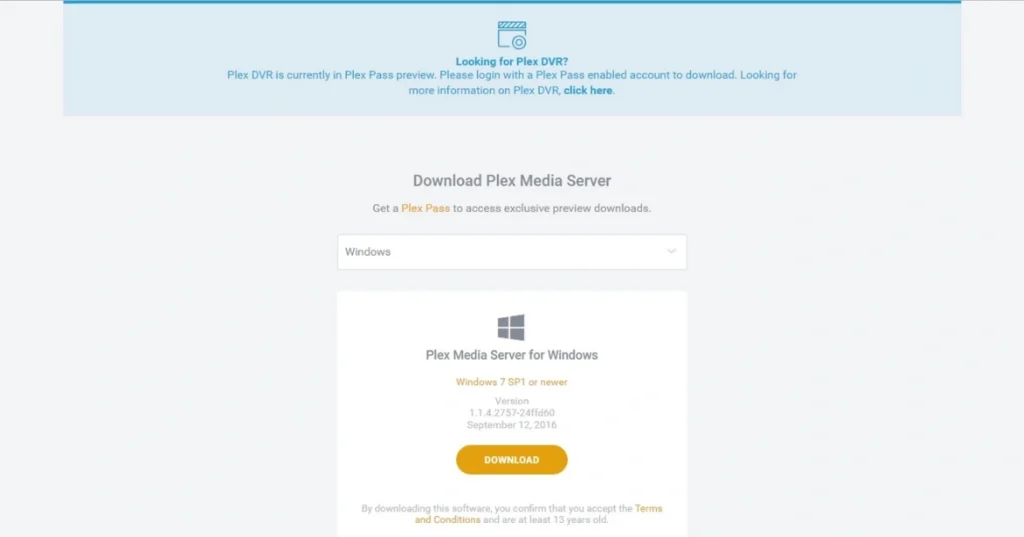
- After signing up, head to the “Downloads” section on Plex and download Plex Media Server.
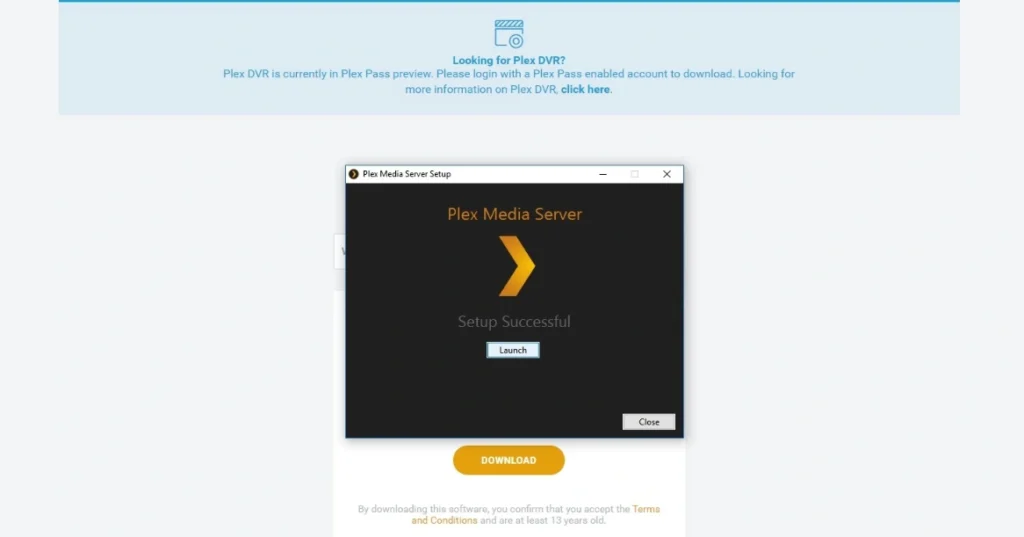
Step 4: Install and Run Plex
- Install Plex Media Server on your computer and launch it.
Step 5: Get the IPTV Plugin for Plex
- Download the IPTV plugin (IPTV.bundle-master) from a trusted source.
Step 6: Install the Plugin
- Unzip the downloaded plugin folder.
- Copy the unzipped folder (IPTV.bundle-master) to this location:
C:\Users\[Your Username]\AppData\Local\Plex Media Server\Plug-ins
Step 7: Edit the Plugin Settings
- Open the
IPTV.bundle-masterfolder. - Locate the info.plist file in the Contents folder.
- Right-click the file and select Edit with Notepad++.
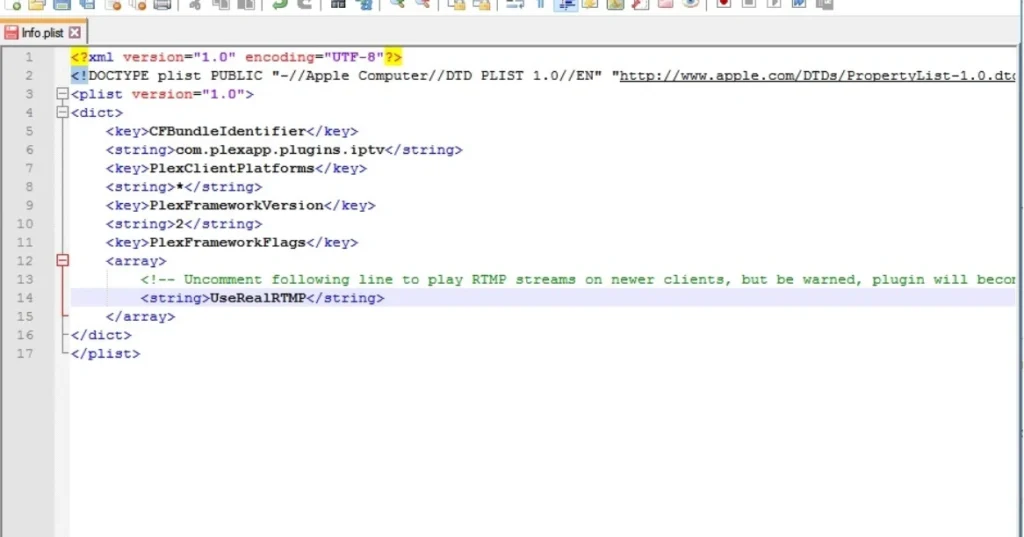
- Remove “
!--” And “-->” from the following line:<!--<string>UseRealRTMP</string>-->
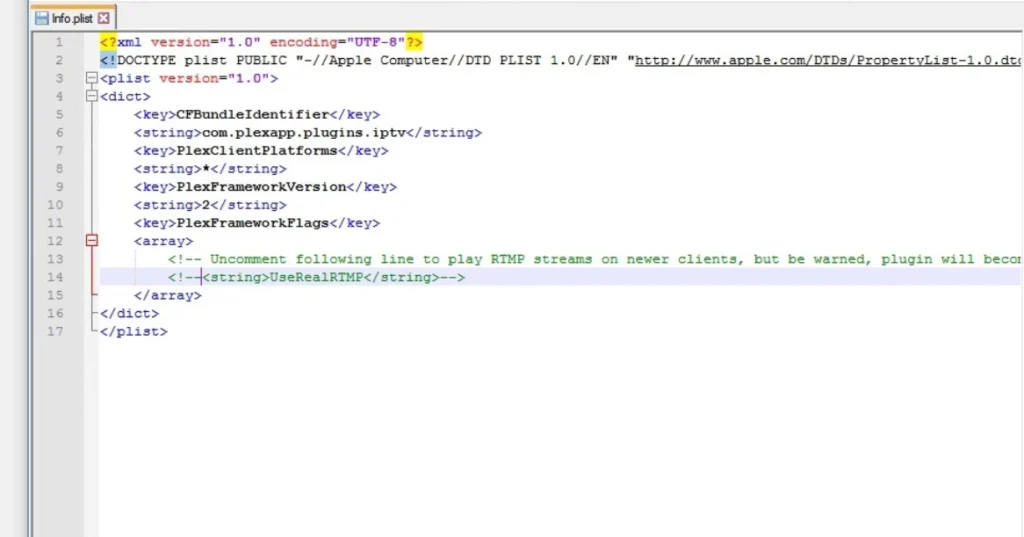
so it looks like this: <string>UseRealRTMP</string>
Step 8: Add Your IPTV Playlist
- In the Contents\resources folder, replace the existing M3U playlist with the one provided by your IPTV service.
Step 9: Rename the Plugin Folder
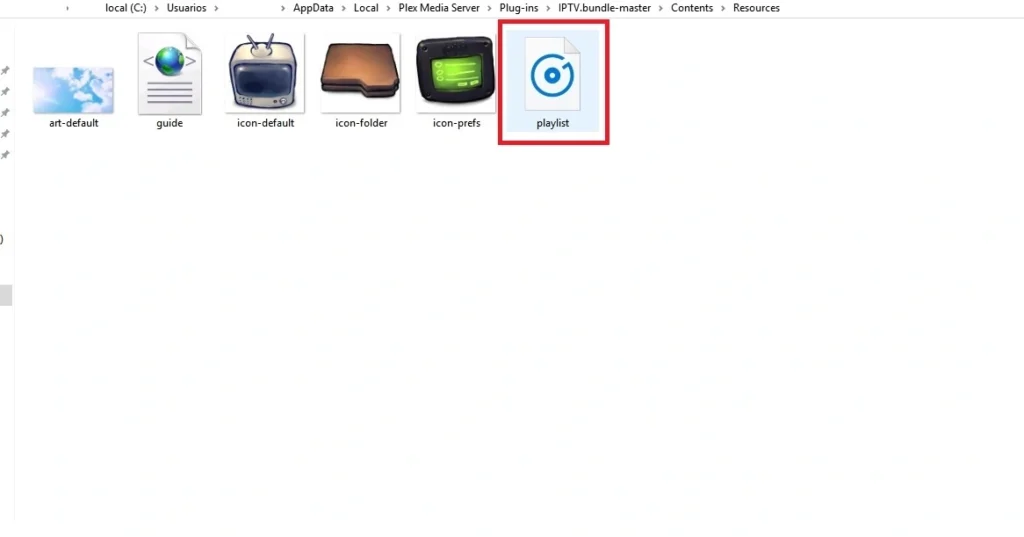
- Go back to the IPTV.bundle-master folder and rename it to IPTV.bundle.
Step 10: Install Plex on PS4
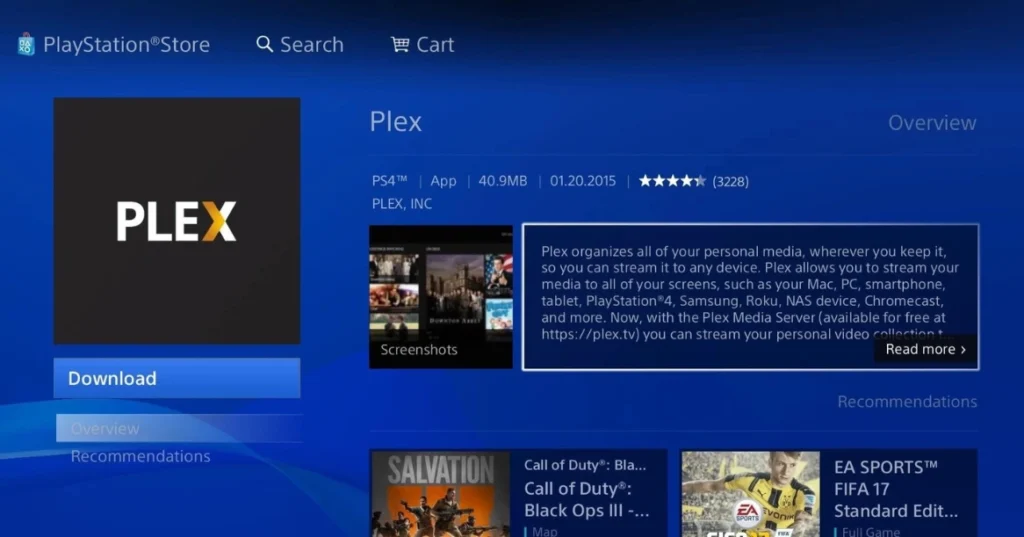
- On your PS4, go to the PlayStation Store, search for Plex, and install the app.
Step 11: Link Plex to PS4
- Launch Plex on your PS4, and it will give you a code.
- Visit plex.tv/link on your computer, enter the code, and log in.
Step 12: Start Watching

- Open Plex on both your computer and PS4 to start watching the IPTV channels you added.
Notes:
- Keep Plex Running: Ensure Plex stays open on your computer whenever you want to watch on PS4.
- Update Playlist: Replace your M3U playlist periodically (e.g., monthly) and restart Plex on both devices to apply updates.
- Stream on Mobile: You can also stream channels on your mobile devices using the Plex app.
Setting up IPTV on your PS5 with Plex media server centralizes your media content. It makes accessing live TV channels easy. Plex’s user-friendly interface makes navigating your IPTV channels seamless on your gaming console.
Make sure your Plex media server has enough hardware and a stable internet connection for IPTV streaming. With the right setup, your PS5 becomes a versatile entertainment hub. It combines gaming and live TV streaming in one device.
Alternative Methods to Watch IPTV on PS5
Plex is a top choice for streaming IPTV on PS5, but there are other ways too. Web IPTV players like Blink Web Player and Free IPTV Player let you watch live TV and on-demand content on your PS5.
Using a web IPTV player has its perks. You can just enter your IPTV provider‘s M3U URL or upload a playlist file. This makes setup fast and easy. Just open the web browser on your PS5, go to the web IPTV player, and enter your M3U URL or upload your playlist. Then, you can start streaming your favorite shows.
When picking a web IPTV player for your PS5, think about a few things:
- Make sure it works with the PlayStation 5 web browser
- Look for a user-friendly interface
- Check if it supports HLS and MPEG-DASH streaming protocols
- See if you can customize and organize channels
Using a web IPTV player on your PS5 offers IPTV streaming without extra hardware or complicated setup. Whether you choose Blink Web Player, Free IPTV Player, or another good web-based option, you’ll get access to lots of live TV and on-demand content on your PS5.
Ensuring a Strong Internet Connection for IPTV on PS5
Enjoying IPTV on your PS5 needs a strong internet connection. Buffering and freezing can ruin your experience. So, it’s key to set up your network for the best performance.
To get a stable and fast connection for IPTV on your PS5, try these tips:
- Use a wired Ethernet connection instead of Wi-Fi whenever you can. This gives a more reliable connection, cutting down on buffering and freezing.
- If you must use Wi-Fi, place your PS5 near your router. This helps avoid signal problems and keeps your connection strong.
- Consider upgrading your internet plan to a higher bandwidth. This is especially important if you stream high-quality IPTV or have many devices on your network.
- Use Quality of Service (QoS) settings on your router to prioritize your PS5’s network traffic. This ensures IPTV streaming gets more bandwidth than other network activities.
- Always check for firmware updates for your router and PS5. This keeps your devices running smoothly with the latest fixes and improvements.
By following these steps, you can greatly reduce buffering and freezing when streaming IPTV on your PS5. A solid internet connection is essential for a smooth viewing experience. It lets you dive into your favorite shows and movies without interruptions.

Legality of IPTV in Canada
Using IPTV in Canada is not illegal by itself. As a Canadian, you can enjoy TV content through IPTV. But, it’s key to pick a legal IPTV service provider.
Legal IPTV services in Canada ask for a subscription fee. This shows they have the rights to show the content they offer. Paying for a reputable IPTV service means you’re watching content legally and supporting creators.
To tell if an IPTV service is legal, look at these signs:
- Legal IPTV providers have clear terms and privacy policies. They follow copyright laws.
- They offer clear prices and safe payment methods. Your financial info is protected.
- Legal services provide good customer support. They have a professional website with detailed info.
Illegitimate IPTV services might charge very low prices or offer free content. They might break copyright laws. Using these services could lead to legal trouble and poor streaming quality.
In short, IPTV is legal in Canada, but you must choose a paid, legal service. This way, you watch content ethically and legally. Supporting legal providers helps the entertainment industry and keeps you safe from copyright issues.
Advantages of IPTV over Traditional TV
IPTV has changed how we watch TV, offering many benefits over traditional TV. It lets users watch their favorite shows and movies anywhere with the internet. This gives users more freedom and flexibility.
IPTV also has a huge video-on-demand library. Unlike traditional TV, IPTV lets users watch what they want, when they want. They can pause, rewind, and fast-forward, giving them full control.
Finding content on IPTV is easy thanks to its user-friendly interface. Users can quickly find their favorite shows, movies, or channels. This is much easier than traditional TV, where users have to remember channel numbers or flip through channels.
Moreover, IPTV uses the internet to stream content, so users don’t need extra equipment. It works with the user’s computer network, making it simpler than traditional TV.
In short, IPTV offers cable-free convenience, a vast video-on-demand library, easy navigation, and works with existing networks. As people want more flexibility and variety in their viewing, IPTV is set to be the future of TV.
Limitations of IPTV
IPTV has many benefits for streaming live TV on your PS5. However, it also has some limitations. One key issue is the need for a fast internet connection. This ensures smooth streaming without interruptions.
Not everyone has access to such high-speed internet, especially in rural areas. This can be a problem.
Another issue is the cost of high-speed internet plans. These plans are often pricier than basic ones. This can make IPTV less affordable for some families.
IPTV is also more prone to internet service disruptions. If your internet goes down, your IPTV won’t work. But regular TV might still be fine.
Lastly, IPTV providers might not offer as many channels as traditional TV. Some niche or local channels could be missing. This might be a problem for viewers with specific preferences.
Despite these challenges, IPTV is still a good choice for many PS5 users. By knowing the potential issues and having reliable internet, you can enjoy IPTV on your PS5 without too much trouble.
Troubleshooting Common Issues with IPTV on PS5
Streaming IPTV on your PS5 can be great, but sometimes you might face problems like buffering, freezing, or connection issues. It’s key to fix these problems to enjoy smooth streaming.
A weak or unstable internet connection often causes buffering and freezing. Check your network speed and make sure your PS5 has a strong Wi-Fi signal or is wired via Ethernet. If issues persist, try restarting your router or get help from your internet service provider.
Server problems with your IPTV provider can also interrupt your stream. Look for updates on your provider’s website or social media about any outages or maintenance.
Outdated software in your Plex or IPTV player app can also cause issues. Always check for updates and use the latest version of the app on your PS5.
If you’ve tried these steps and still have problems, consider these options:
- Restart your PS5 to clear any temporary glitches or cached data that may be causing issues.
- Verify that your IPTV subscription is active and that you’re using the correct login credentials.
- Reach out to your IPTV provider’s customer support for further assistance and guidance specific to their service.
By tackling these common IPTV troubleshooting issues on your PS5, you can reduce buffering, freezing, and connection problems. This ensures a smooth and enjoyable streaming experience.
Future of IPTV on Gaming Consoles
The future of IPTV on gaming consoles, like the PS5, is very promising. More people want streaming services and a smooth viewing experience. Gaming consoles are becoming the top spot for entertainment, combining live TV and on-demand content.
Big names like Sony and Microsoft are working hard to make their consoles better for IPTV. The PS5 is a great example, with its fast internet and top-notch hardware. Soon, we’ll see more channels, better video quality, and cool interactive features.
For content creators and broadcasters, the future is exciting. They can reach more people through gaming consoles. Live events, like sports and concerts, will be streamed directly to consoles, making watching more fun and interactive.
Also, IPTV on consoles means better content suggestions and ads. Services can use what you watch to show you things you might like. This makes watching more enjoyable and helps advertisers too.
The line between gaming and entertainment is getting smaller. With the PS5 leading the way, we’re entering a new streaming era. IPTV on consoles will change how we enjoy entertainment at home in Canada and everywhere else.
Conclusion
Setting up IPTV on PS5 makes streaming live TV and on-demand content easy. You can use software like Plex or other methods. This way, you can watch your favorite shows and channels right on your console.
IPTV has many benefits over traditional TV, like more flexibility and cost savings. But, you need a fast and stable internet connection for the best streaming. Also, check if IPTV services are legal in your area, especially in Canada.
IPTV is becoming more popular, and gaming consoles like PS5 are key players. They offer both gaming and streaming experiences. Sometimes, you might face technical issues, but most can be fixed with a little troubleshooting.
In summary, IPTV on PS5 is a great option for those cutting the cord. It offers a lot of features and flexibility. As technology improves, we’ll see even better experiences on gaming consoles.